Phone Storage Full? Clear Space Without Sacrificing Your Photos
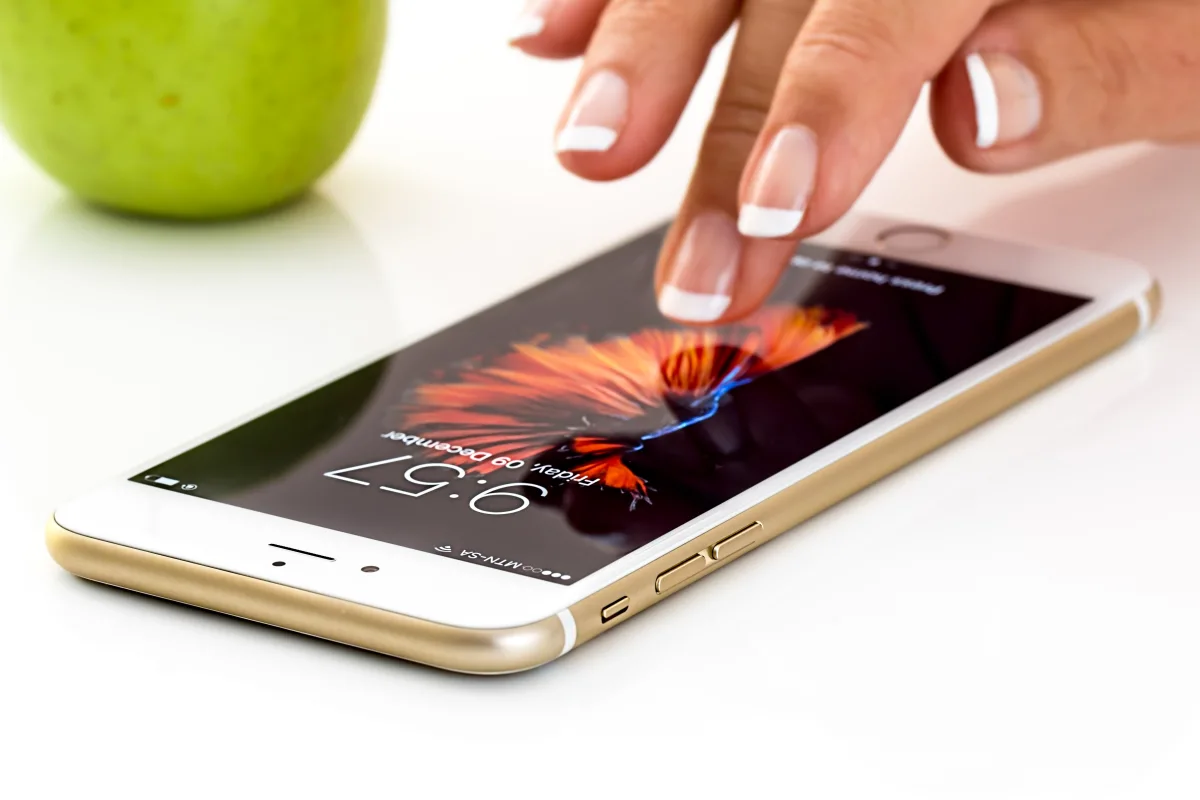
Smartphone in use; illustrative photograph, not a storage-settings screenshot. PxHere / Wikimedia Commons (author unknown), CC0.
Your phone can record a birthday, guide you through a strange city and answer almost any question. Then it refuses to photograph your lunch because a downloaded series from last summer is still living rent-free inside it.
When phone storage is full, the useful question is not “what can I delete fastest?” It is “what can I safely remove, and what would I regret losing?” Start with things you can download again, not the only copy of a family video.
Find the actual space hog
On an iPhone, open Settings, General, then iPhone Storage. On Android, look for Storage in Settings; the route varies by manufacturer. Let the breakdown load before deciding what to change.
Write down the three largest categories and the available space. A phone full of downloaded movies needs a different approach from one full of original photographs. Do not assume that the app with the most annoying notifications is also taking the most room.
Start with the replaceable stuff
Review downloaded episodes, playlists, podcasts and offline maps in the apps that created them. Keep what you need for your next journey; remove downloads you can retrieve later. Check that you still have access to the service and account before assuming everything is replaceable.
Next, inspect Downloads and old exported files. A document named “final-final-actually-final” may be expendable. A signed contract may not. Open unfamiliar files rather than deleting a whole folder by its name.
Offloading is not the same as deleting
Apple distinguishes offloading an app, which retains its documents and data, from deleting it and its related data. Read the option before tapping. On Android, consult the app’s own storage controls: clearing app data can remove local information or require signing in again.
Before removing an app you might need urgently, check your password, recovery method and whether you can install it again. A little recovered space is not worth losing access to the account you use for work.
Protect photographs before touching them
Cloud synchronization and a separate archive are different things. With iCloud Photos, deleting a photograph on one connected device also deletes it from the other devices using that library. “It is in the cloud” is not permission to press Delete.
Apple’s Optimize iPhone Storage option can retain smaller device copies while keeping full-resolution files in iCloud. You need sufficient cloud capacity. On Android, Google Photos offers Free up space on this device for backed-up items; first verify the backup and correct Google account. This removes device copies, not a promise of offline access.
For irreplaceable memories, keep another verified copy on a computer or suitable external drive. Open a few files there, including an older picture and a video. A folder icon alone does not demonstrate that the transfer succeeded.
Use a decision list—not a giant Delete button
- Remove first: expendable downloads that you know you can retrieve.
- Review individually: screenshots, duplicate exports and large message attachments.
- Protect first: original photos, recordings, personal documents and app-only work.
- Leave alone when unsure: system categories or files whose purpose you cannot identify.
Do not empty a recently deleted folder just to make a number look better before checking its contents. Recovery windows differ by service, and permanent deletion is a separate decision.
Check whether your cleanup worked
Return to the same storage screen after it has refreshed. Compare the available space with your starting note. Record the actions that helped; there is no honest universal “recover ten gigabytes” promise.
Then adjust one recurring habit: fewer offline episodes, a regular review of downloads, or a sensible photo-storage plan. Do not schedule automatic deletion of memories you have not backed up.
Before buying a new phone
If you repeatedly fill the device even after removing unnecessary content, you may genuinely need more capacity. Use your real storage pattern, not launch-day excitement, to choose. Our iPhone buying discussion offers a broader checklist.
The aim is not an empty phone. It is enough room for the things you actually use—and a lunch photograph that does not require an emergency sacrifice.
Sources
- Apple: checking storage and offloading apps
- Apple: photo storage and optimization
- Apple: deleting photos from a synchronized library
- Google Photos: freeing device space after backup
Settings and labels vary by device and software version. Guidance reviewed on 4 October 2026; no cleanup benchmark or device test is claimed.
Image credit
Illustrative photograph: PxHere / Wikimedia Commons (author unknown) · CC0. Resized and converted to WebP; not a test result or before-and-after comparison.