Why Does Your E-Reader Flash—and Keep an Image When It Is Off?
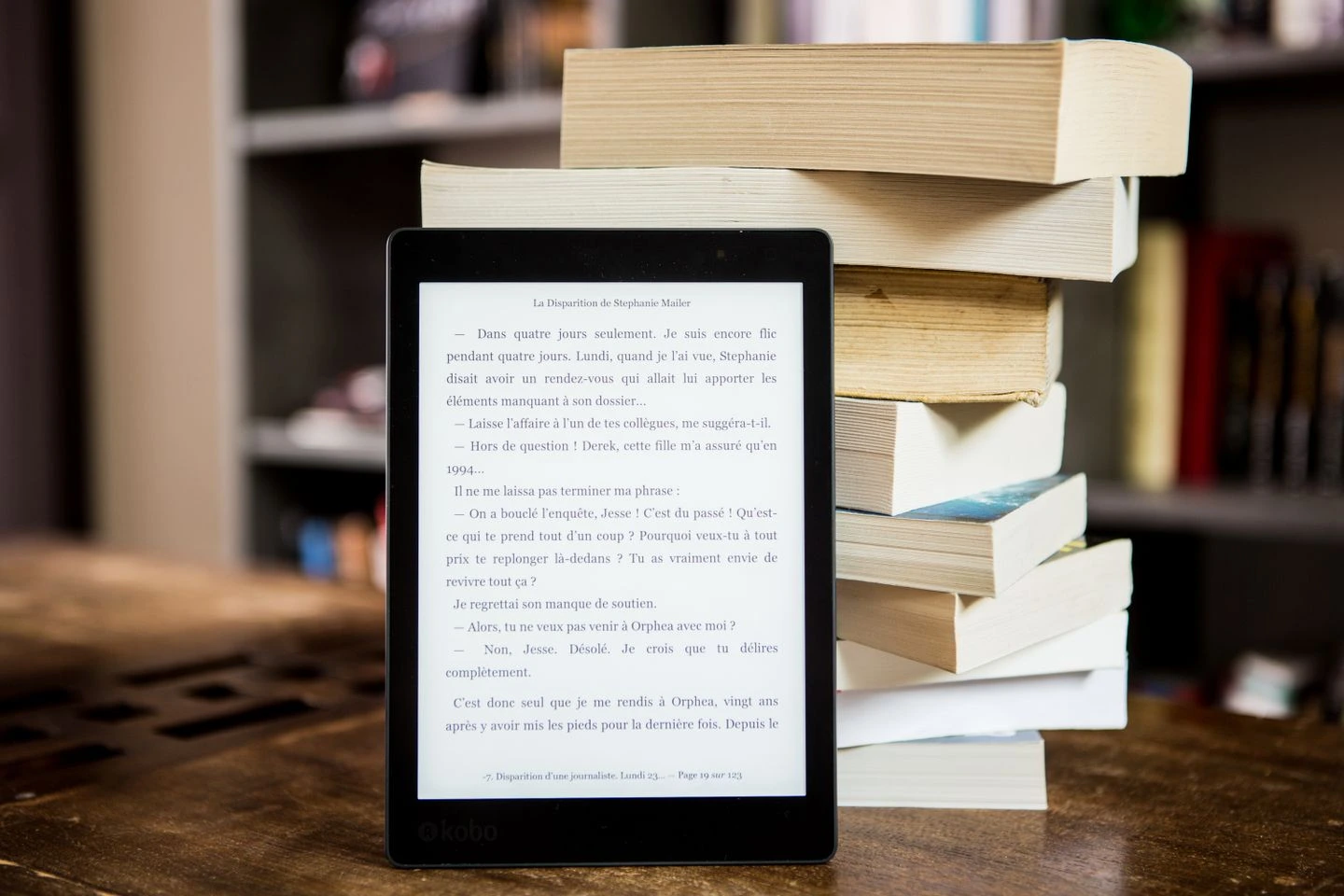
An e-reader beside printed books: an illustrative photo, not a performance test. Perfecto Capucine via Pexels.
- The “ink” is more than a nickname
- A page can stay without the screen spending power to hold it
- So why the occasional flash?
- A faint old page has a name: ghosting
- Lighting the page is a separate layer
- A calmer way to observe your screen
- Change one setting—not the whole device
- The point is to get back to the book
You turn a page. The screen briefly changes, perhaps with a dark flash, then the words settle into place. Later, the device is asleep or switched off, yet a picture still sits on the display. If you expect every screen to behave like your phone, both moments can look suspicious.
An E Ink screen is doing a different job in a different way. Understanding three separate things—updating an image, holding an image, and lighting an image—makes the experience much less mysterious. It also helps you describe a genuine problem without treating every page refresh as one.
The “ink” is more than a nickname
In a simple black-and-white E Ink system, charged pigment particles move under an electric field to change what you see. E Ink’s own technology explanation describes that physical process. This is a useful starting point, not a claim that every color panel uses an identical arrangement.
Think of it as rearranging a visible surface, rather than assuming that a page of text must be continuously redrawn in the same way as moving video. You do not need to open the device to appreciate the distinction. Please do not take one apart to look for the particles.
A page can stay without the screen spending power to hold it
E Ink calls this property bistability: the display can retain an image with its power sources removed. Updating the image requires power; retaining it does not. That describes the display, not zero electricity use by the entire e-reader. Lighting, processing, and other device functions are separate.
The practical lesson is simple: a visible cover or message is not, by itself, proof that the device is awake or responsive. Use its documented controls and status indications. Do not deliberately drain the battery or disconnect anything to test the principle.
So why the occasional flash?
A flash can be part of a display refresh, not necessarily a fault. In its segmented-display kit FAQ, E Ink explains that occasional global updates refresh the display and that their frequency depends on the application. The kit’s own update schedule is not a rule for your reader.
That distinction matters. “It flashed while turning a page and then displayed the text correctly” describes an event. “The screen is broken” is a conclusion. Start with the event, then check the guidance for the exact model. This article does not prescribe a universal number of seconds or pages between flashes.
A faint old page has a name: ghosting
Ghosting means faint traces of previous text or images remain after an update. BOOX explains this behavior and documents refresh controls on its devices. That does not mean every reader has the same menu, gesture, or setting.
Separate “a pale remnant of the previous page” from “a fixed line that stays in the same place.” Do not assume both have the same cause. A description of the shape, location, and whether it changes is more useful than borrowing a diagnosis from a photo of someone else’s device.
Lighting the page is a separate layer
Kobo describes its front-light technology as spreading light across the page rather than illuminating it from behind. A reader with built-in lighting is therefore not contradicting the idea of a reflective display.
For your own observations, keep lighting steady. If you change the lamp, brightness setting, font size, and page all at once, you have made it hard to know what you are comparing. We are not drawing medical conclusions about eye health or promising a battery-life figure from this distinction.
A calmer way to observe your screen
If the device is otherwise working normally, try this short, non-destructive observation during ordinary reading. It is a suggested routine, not a hardware test we performed.
- Note the exact model and software version using its documented information screen.
- Open a normal text page. Record what you see before making changes.
- Turn a few pages at your usual pace. Does the event happen during the transition, or remain after the page settles?
- If a faint remnant appears, consult the model’s manual for a supported refresh command. Use only the documented control.
- Write whether the appearance changed. Stop if the device becomes unresponsive, and follow the manufacturer’s support process instead of experimenting further.
Copy this note: Model: __. What I did: __. What appeared: __. Did it remain?: __. Documented action tried: __. Result: __. Do not share account details or private book annotations in support screenshots.
Change one setting—not the whole device
If your manual offers refresh options and the behavior is distracting, record the original choice before changing one option. Compare the same kind of page under the same lighting, then decide whether the result suits you. Restore the earlier option if it does not.
Do not begin with a factory reset, unofficial firmware, pressure on the panel, or a repair tutorial intended for another model. Persistent marks, physical damage, or a page that will not update deserve model-specific support. This guide cannot determine from a description whether a particular screen needs repair.
The point is to get back to the book
A good outcome is not spending an afternoon trying to eliminate every unfamiliar screen behavior. It is understanding what you saw, making a sensible documented adjustment if appropriate, and reading comfortably with the device you have.
Once the screen stops being the main event, try our active-recall approach to remembering what you read. For another example of a useful technology with limits that surprise people, see why noise-cancelling headphones do not remove every voice.
Photo credits: e-reader beside books and handheld e-reader, both by Perfecto Capucine via Pexels under the Pexels License. These are older illustrative photographs, not a new-product review, endorsement, or a before-and-after test. The linked manufacturer pages support the technical explanation; model-specific behavior can differ.
Both photographs by Perfecto Capucine are licensed through Pexels and shared across languages. They were proportionally resized and converted to WebP without AI generation. They do not document screen measurements or a diagnosis. The observation activity is a suggestion, not a test performed on a particular device.